
Master Your Inbox: Top 5 Email Management Strategies for Founders


Introduction
Are you sick and weary of your cluttered inbox? Do you feel that the time you could be spending expanding your business is being wasted on handling emails? "Master Your Inbox: Top 5 Email Management Strategies for Founders," our in-depth guide, can assist. This article provides useful advice, resources, and methods to help you effectively handle your email and take back your time.

Reasons for a Cluttered Inbox
Emails that aren't organized, spam, bad conversation, and not enough automation can all make your inbox look crowded. Not managing your emails well wastes time and money, which causes stress and failure. Email management experts say that the following are typical reasons why inboxes get cluttered:
Spam and Unnecessary Emails: Your inbox quickly gets full of spam and unnecessary emails.
Lack of Organization: Without a system of files, labels, or filters, it's easy for important emails to get lost in all the other emails.
Poor Communication: Subject lines and email chains that aren't clear can lead to confusion and messages being lost.
Absence of Automation: Manual emails, without the help of automation tools, is inefficient.
Now let's explore the best tactics that will change the way you handle your emails.

1. Email Management Strategies for Founders:
Setting Up Your Inbox for Success
Having a well-organized inbox is the first step to effectively using email. Here's how to successfully configure your inbox:
Choosing the Right Email Client and Tools
Gmail:
Labels and Filters: Sort emails by project, priority, or kind with labels. Create filters so that when new emails arrive, these labels are applied automatically.
Priority Inbox: To make sure you view the most important emails first, set up the priority inbox to emphasize crucial emails at the top.
Integrations: Incorporate applications such as Google Keep and Calendar to expedite scheduling and task administration.
Outlook:
Focused Inbox: To help you concentrate on what really matters, utilize the Focused Inbox function to segregate critical emails from the rest.
Quick Steps: To automate repetitive operations, like as moving emails to certain folders or marking them for follow-up, create Quick Steps.
Clutter: To lessen inbox noise, enable Clutter to automatically put low-priority emails into a different folder.
SMTP Servers:
IMAP/POP Settings: Set up your email program to use IMAP to synchronize with your SMTP server so that you may access it from any device.
Email Forwarding: For easier management, set up email forwarding to combine emails from several accounts into a single inbox.
Organizing with Folders and Labels
Creating a system of folders and labels helps you categorize emails effectively:
Project-Based Folders: Create folders for each project or client to keep related emails together.
Priority-Based Labels: Use labels to mark emails by priority, such as "High Priority," "Medium Priority," and "Low Priority."
Action-Based Folders: Set up folders like "To Do," "To Read," and "Waiting For Response" to organize emails based on the required action.
Setting Up Filters and Rules
Automate the sorting of incoming emails with filters and rules:
Gmail: Create filters to automatically label, archive, or delete certain emails based on criteria like sender, keywords, or recipient.
Outlook: Use rules to move emails to specific folders or apply categories based on conditions like subject, sender, or keywords.
By setting up a structured system, you’ll be able to quickly find important emails and reduce the time spent searching through a messy inbox.
2. Time-Saving Email Management Techniques
Time savings are the main goal of good email handling. Here are some techniques to help you achieve that:
The 4D Method
Choose whether to Delete, Delegate, Do, or Defer each email as you go through them:
Delete: Get rid of emails that aren't important right away to keep your inbox clear.
Delegate: Forward emails that can be handled by someone else, such as a virtual assistant or team member.
Do: Address emails that can be handled in under 2 minutes to clear them out quickly.
Defer: Schedule time to respond to more complex emails that require thoughtful replies.
Batch Processing and Time Blocking
Set specific times during the day to check and respond to emails instead of continuously monitoring your inbox:
Morning Check-In: Read and answer important texts for 30 minutes in the morning.
Midday Review: Set aside an extra 30 minutes around noon to check your email.
End-of-Day Wrap-Up: Get ready for the next day by clearing out your inbox in the last 30 minutes of your shift.
Two-Minute Rule: If you can answer, share, delete, or act on an email in less than two minutes, do it right away to avoid backlogs.
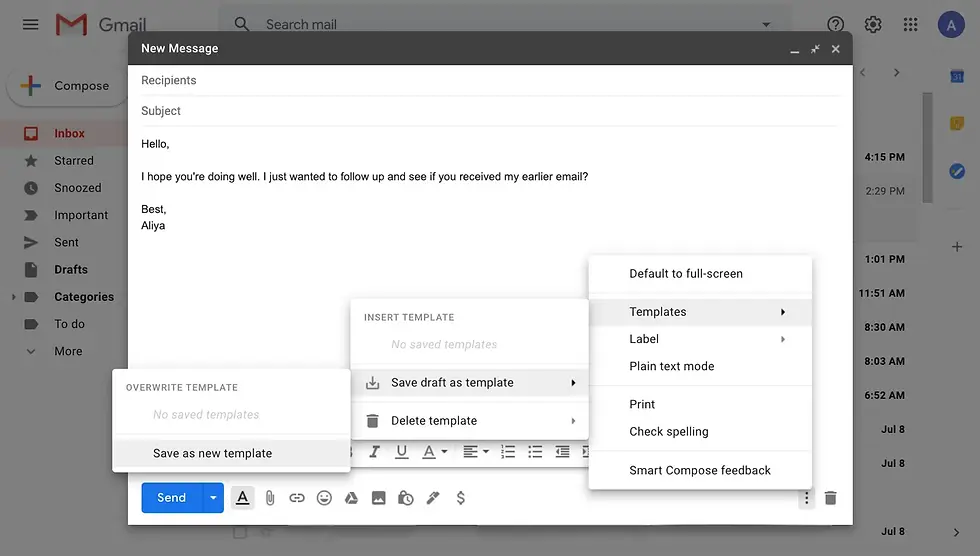
Use Templates and Canned Responses
For repetitive emails, create templates to respond quickly without drafting each message from scratch:
Gmail: Use "Canned Responses" (now known as "Templates") to save and reuse common replies.
Outlook: Create "Quick Parts" or "Email Templates" for frequent responses, allowing you to insert pre-written content with just a few clicks.
These techniques will help you manage your emails more effectively, giving you more time to focus on high-impact activities.

3. Essential Email Management Tools
Leveraging the right tools can drastically improve your email management. Here are some must-have tools:
Email Clients and Apps
Gmail:
Snooze: Use the Snooze feature to temporarily remove emails from your inbox until you’re ready to deal with them.
Send Later: Schedule emails to be sent at a later time, ensuring messages reach recipients at optimal times.
Tasks Integration: Use Google Tasks to create to-do lists directly from your emails.
Outlook:
Calendar Integration: Link your emails to calendar events, making it easy to schedule meetings and set reminders.
Tasks: Utilize the Tasks feature to create and manage to-do lists from your inbox.
People Pane: Use the People Pane to view recent conversations and meetings with contacts, providing context for your emails.
Third-Party Apps:
Spark: Offers features like Smart Inbox, email delegation, and collaborative email editing.
Newton: Provides read receipts, send later, and follow-up reminders.
Superhuman: Known for its speed and keyboard shortcuts, helping you process emails quickly.
Integrations and Add-Ons
Tools like Zapier or Make can automate tasks between your email and other apps, streamlining your workflow:
AI-Powered Tools
AI tools can help prioritize emails, suggest replies, and even handle routine responses:
Gmail:
Smart Compose: Offers predictive text to help you write emails faster.
Smart Reply: Provides suggested quick responses to emails.
Outlook:
Insights: Offers productivity analytics and email patterns to help you manage your time better.
MyAnalytics: Provides insights into your work habits, helping you improve productivity and focus.
Using these tools, you can streamline your email workflow and handle your inbox with greater ease.

4. Best Practices for Efficient Email Communication
Effective email communication is key to reducing back-and-forth and improving productivity. Follow these best practices:
Craft Clear and Concise Emails
Keep your messages short and to the point. State your purpose clearly in the subject line and opening sentence:
Example: Instead of "Meeting," use "Schedule Meeting for Project Update – Friday, 3 PM."
Provide context and key details to avoid confusion and unnecessary follow-ups:
Example: "Hi [Name], I’m writing to schedule a meeting to discuss the project update. Please let me know if Friday at 3 PM works for you. The agenda includes discussing milestones, addressing any roadblocks, and planning next steps."
Set Expectations with Autoresponders
Use autoresponders to inform senders when they can expect a reply, managing their expectations:
Gmail: Set up an out-of-office reply to inform contacts of your availability.
Outlook: Use automatic replies for both internal and external contacts to provide information on your response time.
Managing Follow-Ups
Keep track of emails that require follow-up and use reminders to ensure timely responses:
Tools:
FollowUp.cc: Schedule follow-up reminders and track email opens.
Boomerang for Gmail: Set reminders for follow-ups and track responses.
By following these best practices, you’ll improve your email communication and reduce misunderstandings and delays.

5. Leveraging a Virtual Assistant for Email Management
A virtual assistant (VA) can be a game-changer for managing your emails. Here’s how to make the most of a VA:
Delegating Email Tasks
Assign routine and low-priority email tasks to your VA, freeing up your time for more critical activities:
Examples of tasks: Sorting emails, responding to common queries, managing newsletters, and flagging important messages.
Provide clear guidelines and instructions to ensure your VA handles emails according to your preferences:
Shared Document: Create a document outlining the types of emails to prioritize, those that can be handled independently, and those that require your attention.
Effective Communication with Your VA
Maintain open communication with your VA to ensure smooth email management:
Regular Check-Ins: Schedule regular meetings to review email management processes and address any issues or adjustments needed.
Feedback Loop: Provide constructive feedback to help your VA improve their email handling skills.
Conclusion
It doesn't have to be hard to keep track of your emails. This list of five tips will help you get back in charge of your email, get more done, and get your time back. You can get the full guide by downloading it. It has thorough steps, tools, and templates to help you master your inbox and get better at managing your emails.
If managing your emails feels overwhelming and you need assistance, consider hiring a virtual assistant. Our expert VAs at Incrementum can help you streamline your inbox, handle routine tasks, and free up your time to focus on growing your business.
Message us today to learn more about how our virtual assistant services can transform your email management and boost your productivity!


Comments